OpsAlo puts your sales, labour, invoices and the end of every night in one place, and sends you the reports. Screenshots are from a real venue, with names hidden and figures changed.
Getting started
Set OpsAlo up once and it runs alongside the venue. Your managers can do most of this too.
- Add your venue details. Your name at the bottom of the sidebar, then Settings → Venue: address, hours, cuisine and phone. They drive the weather, public holidays and your forecast.
- Invite your managers. Settings → Team & access → Invite. Give them Manager access: they can run the venue day to day, including the team, rosters, reports and financials.
- Connect your systems. Settings → Integrations: Deputy for rosters and labour, Xero for your accounts, Square for sales.
- Choose who gets the reports. Settings → Report emails. The nightly and weekly reports go out as PDFs, to anyone, even people who never open OpsAlo.
- Set up your nights. Settings → End of day setup: your services, payment types, discount codes and targets, so the nightly numbers match how you trade.
Your numbers
Open Financials → Overview for sales, covers, labour cost and labour %, by day, this week, last week, this month or any range. Sales come from your nightly numbers and your POS; labour from the roster.
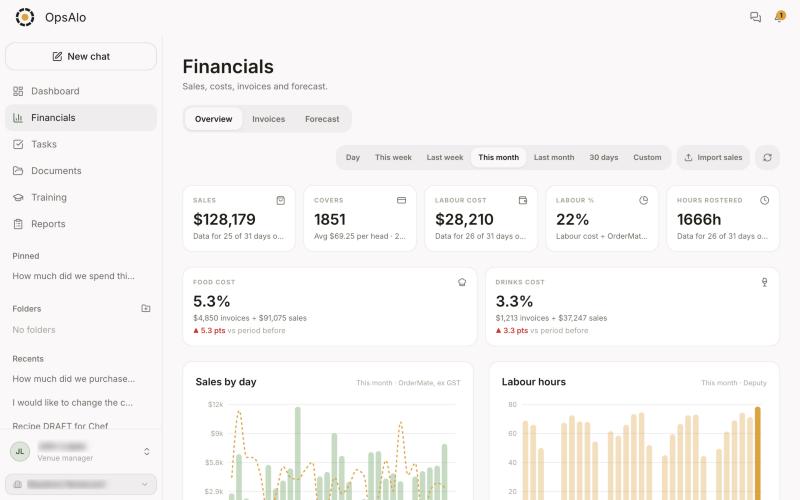
Financials: sales, covers, labour and food and drinks cost for the month
Food and drinks cost sit under the totals: what you spent on invoices against what you sold, with the change on the period before.
Invoices and cost of goods
Supplier invoices go in from a photo or a PDF. OpsAlo reads the supplier, date, every line and the GST, and files it under Kitchen, Bar or Other.
- Who can upload: owners, managers, head chefs, executive chefs, bar managers and head bartenders.
- Check, then confirm. Anything read by AI waits as "to check" until someone confirms it.
- Targets. Set a food and a drinks cost target and every week shows where you are against it.
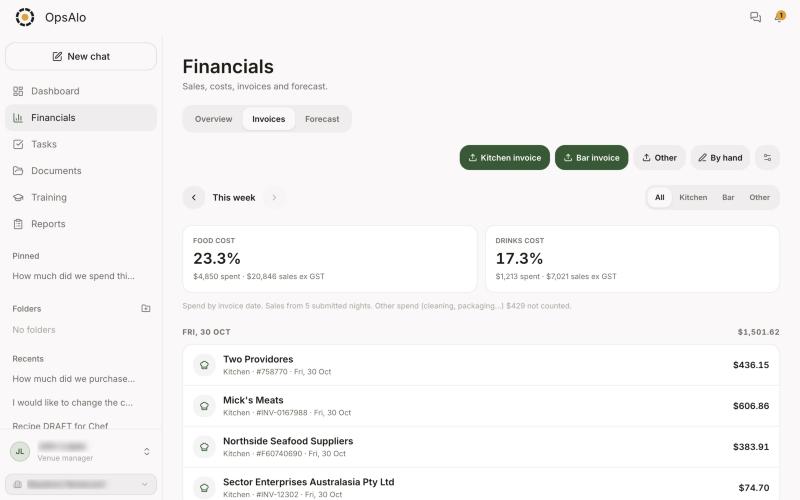
Invoices for the week, with food and drinks cost against sales
Spend is counted by the date on the invoice, not the day it was uploaded.
Reports in your inbox
You don't need to open OpsAlo to know how the venue is going.
- Every night: once a manager submits the nightly numbers, the end of day report goes out as a PDF: sales by service, covers, cash and payments, discounts, labour, the team's check-ins summed up, and the manager's notes.
- Every Monday: the weekly report covers Monday to Sunday, with the trend, cost of goods and the forecast for the week ahead.
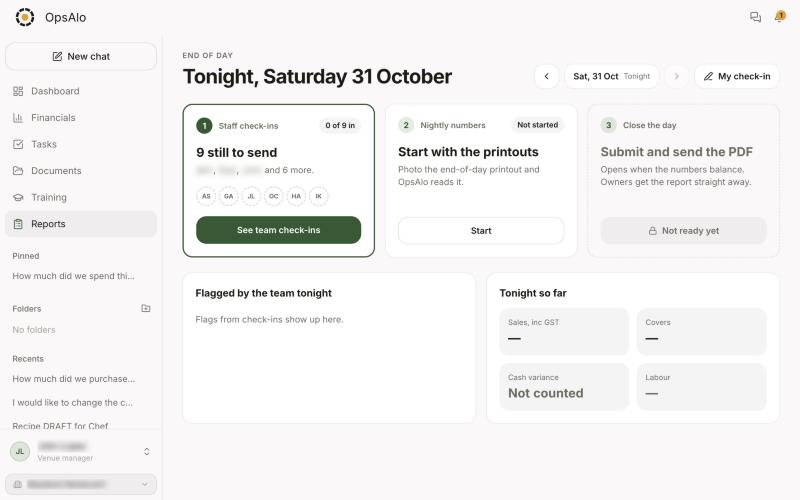
Tonight in Reports: staff check-ins, nightly numbers, then the PDF goes out
Each person on the list gets their own email. Add or remove people in Settings → Report emails.
Ask OpsAlo
Ask about the business in plain words. OpsAlo answers from your own numbers, invoices and roster.
How did we go last week compared to the week before?
Sales, covers, spend per head, labour % and cost of goods for the week, with what changed and the best and worst nights.
Your chats are private to you. Nobody else at the venue can see them.
Rosters, labour and the forecast
With Deputy connected, OpsAlo sees every shift and its cost.
- Forecast: Financials → Forecast has expected covers and spend for each service. Suggest from history fills it in from the same weekday over the last 4 weeks and last year, with public holidays.
- Labour % before the week starts: rostered cost against forecast sales, day by day.
- Drafts first: rosters built from OpsAlo stay drafts until a manager publishes them.
Your team and access
Three access levels, and a position for each person.
Everything a manager can do, plus deleting the venue and making or changing other owners.
Runs the venue: team, rosters, reports, financials and settings.
Their own shifts, tasks, training, documents and team chats.
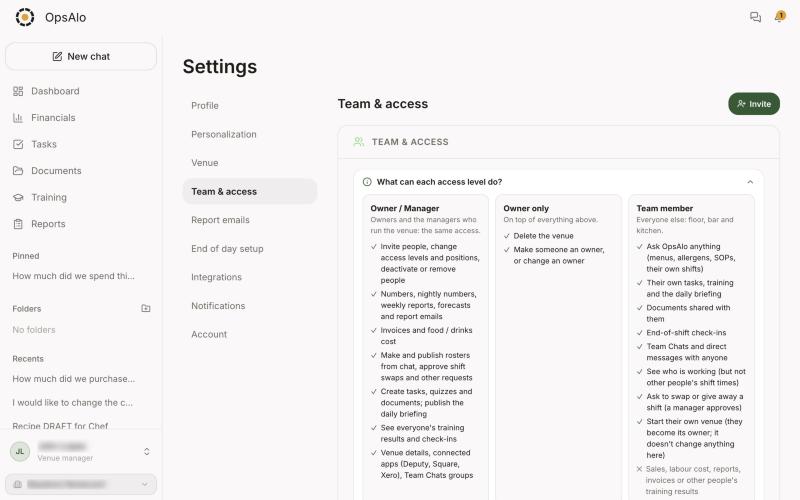
Settings → Team & access, with the guide to each access level
Team members never see sales, labour cost, reports, invoices or other people's training results.
More than one venue
Each venue has its own team, documents, numbers and reports. Switch between them from the venue name at the bottom of the sidebar. Anyone can start a new venue; only an owner can delete one.
The dashboard
Today at a glance: the daily briefing, weather, Google reviews, labour %, sales today, training, holidays, nearby events and who's on. Press Customize to choose the widgets.
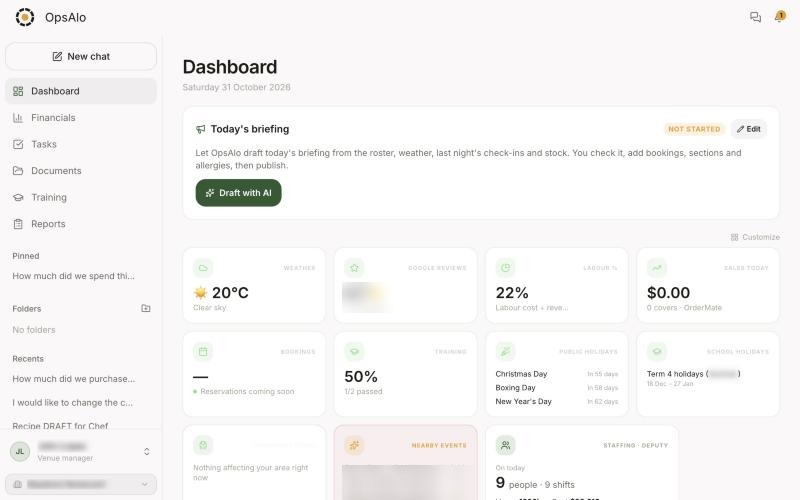
The dashboard: today's briefing and your widgets
Your account and data
Tap your name at the bottom of the sidebar for Personalization (light or dark, language, what OpsAlo remembers), Profile, Settings, Help and Log out.
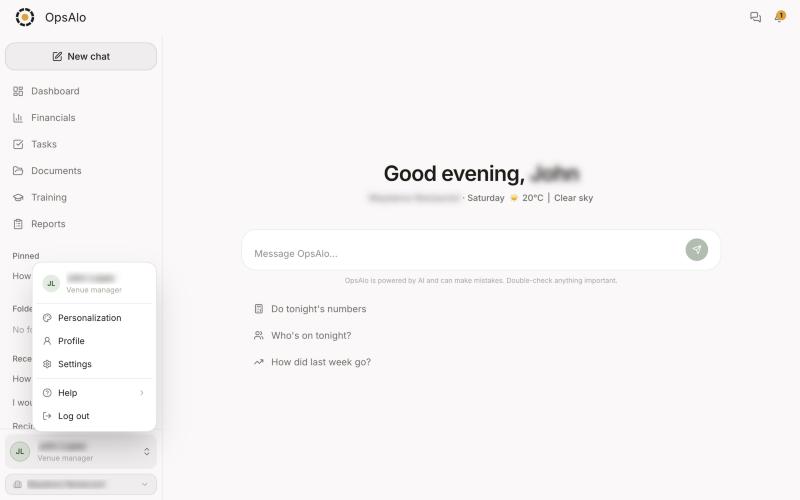
The account menu
Your venue's data is yours. It is never sold or used to train AI models. See the Privacy Policy and Terms.
Stuck on something?
Ask OpsAlo in the app, or email hello@opsalo.com.