OpsAlo is your venue's assistant. Ask it about the menu, your shifts or how things are done here, in your own language. Screenshots are from a real venue, with names hidden and figures changed.
Getting started
- Accept your invite. Your manager sends it by email. The link lasts 7 days; if it runs out, ask them to send it again.
- Set your password. Then sign in on the web at app.opsalo.com or in the app.
- Get the app. OpsAlo is on the App Store. Turn on notifications so you hear about tasks, messages and shift changes.
- Pick your language. Tap your name at the bottom of the sidebar, then Personalization. OpsAlo answers in your language and translates the app.
Ask OpsAlo
Ask anything about the venue, in your own words and your own language. OpsAlo answers from the venue's own menus, recipes and how-tos.
What's in the lamb shoulder?
The dish, how it's made and what it's served with, straight from the menu and recipes.
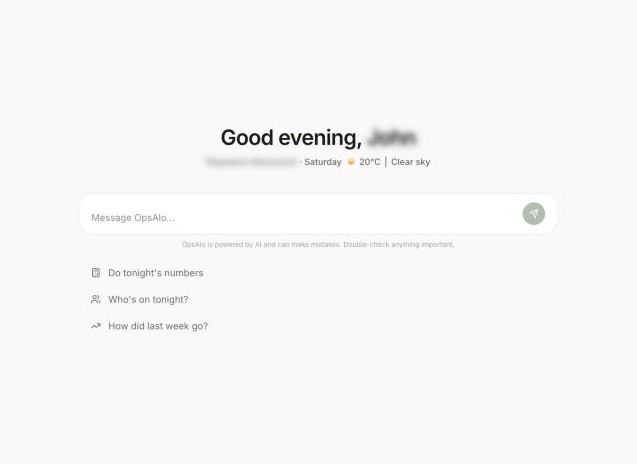
Ask anything, or tap a suggestion
If OpsAlo isn't sure, it tells you rather than guessing. Always double-check allergens with the kitchen.
Your shifts
- Ask "when am I working?" or check the dashboard for your next shifts.
- You can see who else is working, but not other people's times.
- Need to swap or give away a shift? Ask OpsAlo. It goes to your manager to approve, and you're told when they do.
Tasks
Your jobs for the shift, in Tasks. Tick them off as you go.
- Some tasks are shared: done when anyone does it (like restocking the bar).
- Some are for each person: everyone ticks their own (like reading the new menu).
- Tasks with a quiz or a document open it for you, and tick themselves off when you finish.
Training
Quizzes your manager made from the venue's menus and how-tos. Open Training, start a course, and see your score at the end. The pass mark is shown on each one.
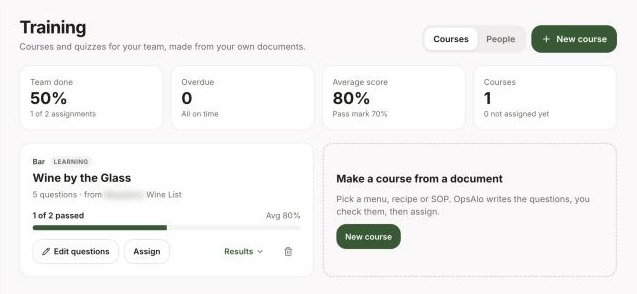
Training: a quiz made from the wine list
End of shift check-in
At the end of your shift, OpsAlo asks a few quick questions: how it went, guest feedback, anything that ran out or broke. It takes a minute, in your own language, and your manager sees it with everyone else's.
Something urgent? Flag it in your check-in and it goes to the top for your manager.
Team Chats
Messages for the venue, from the chat icon at the top right.
- Groups for the whole venue, the kitchen, the floor and so on.
- Direct messages with anyone at the venue.
- @mention someone so they see it, send photos, and translate any message into your language.
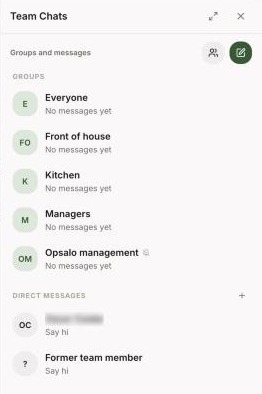
Team Chats: groups and direct messages
OpsAlo's AI doesn't read your team chats.
Documents
Menus, recipes and how-tos your manager has shared, in Documents. You can read them any time, and OpsAlo uses them to answer your questions.
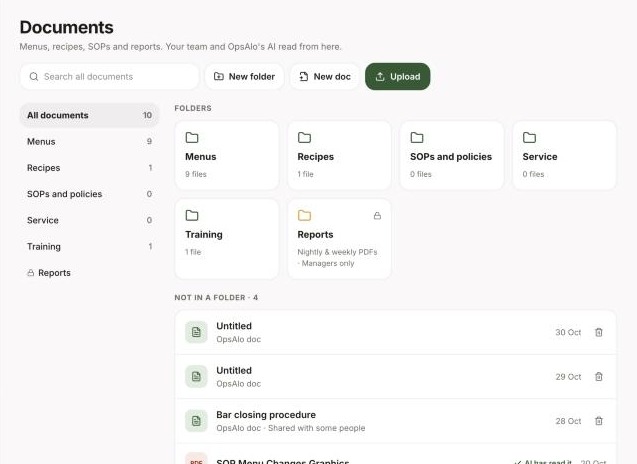
Documents shared with the team
Notifications and your account
The bell at the top right has your reminders and updates. Tap your name at the bottom of the sidebar for Personalization (language, light or dark, what OpsAlo remembers about you), Profile, Help and Log out.
Stuck on something?
Ask OpsAlo in the app, or email hello@opsalo.com.